On this page
A Connection is an outside system you have linked so that it brings documents and transaction rows into your Data Room automatically. Nothing needs connecting to start; connect once a first Finding has shown you what the checks are worth and you want every invoice examined as it arrives.
What you can connect
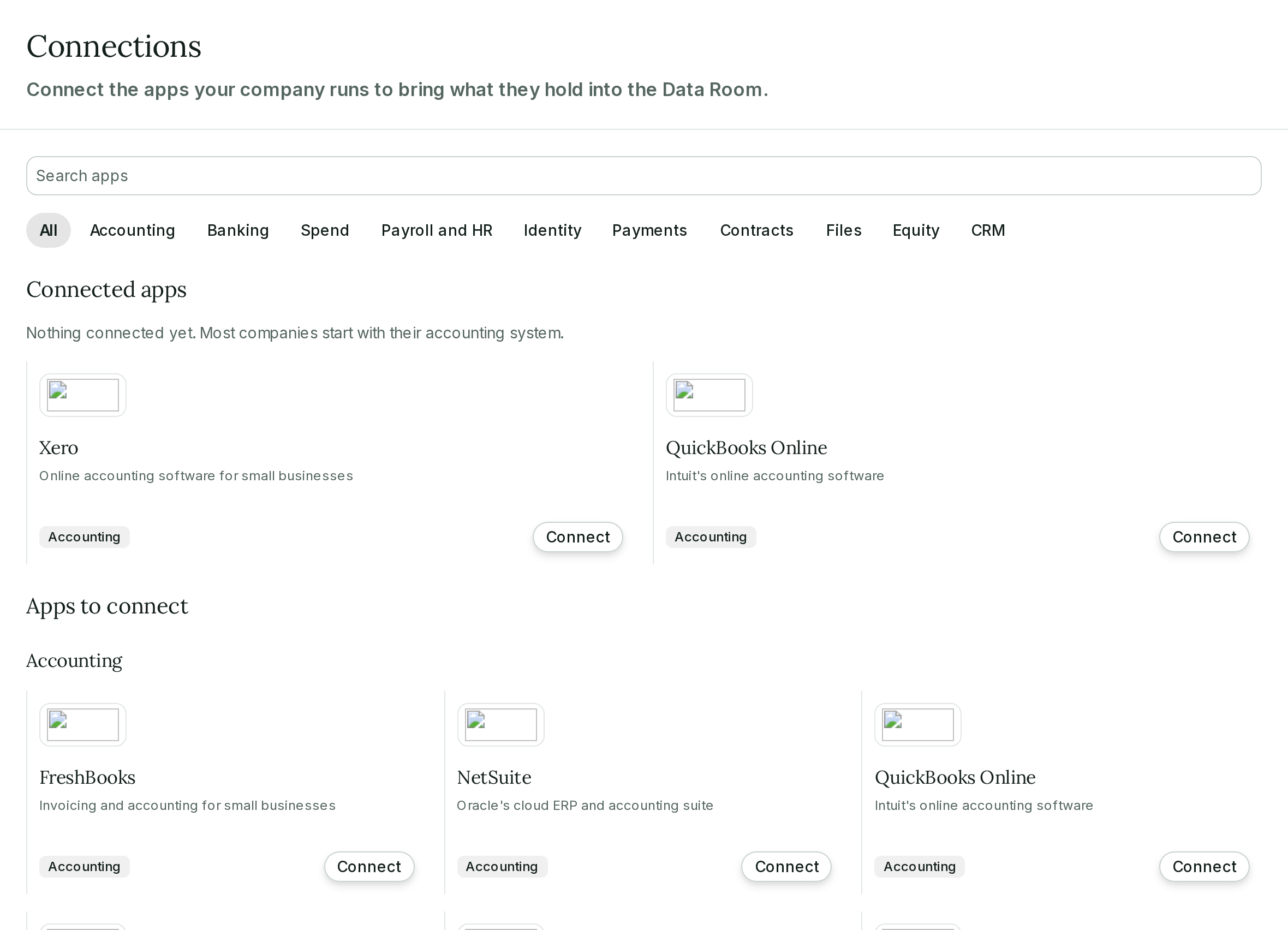
Open Connections to see the apps Ressura connects with, or will very shortly, with more coming all the time. You can also reach it from the Data Room: choose Add to Data Room, then the Connections tab, which lists what your company has connected, and Connect an app.
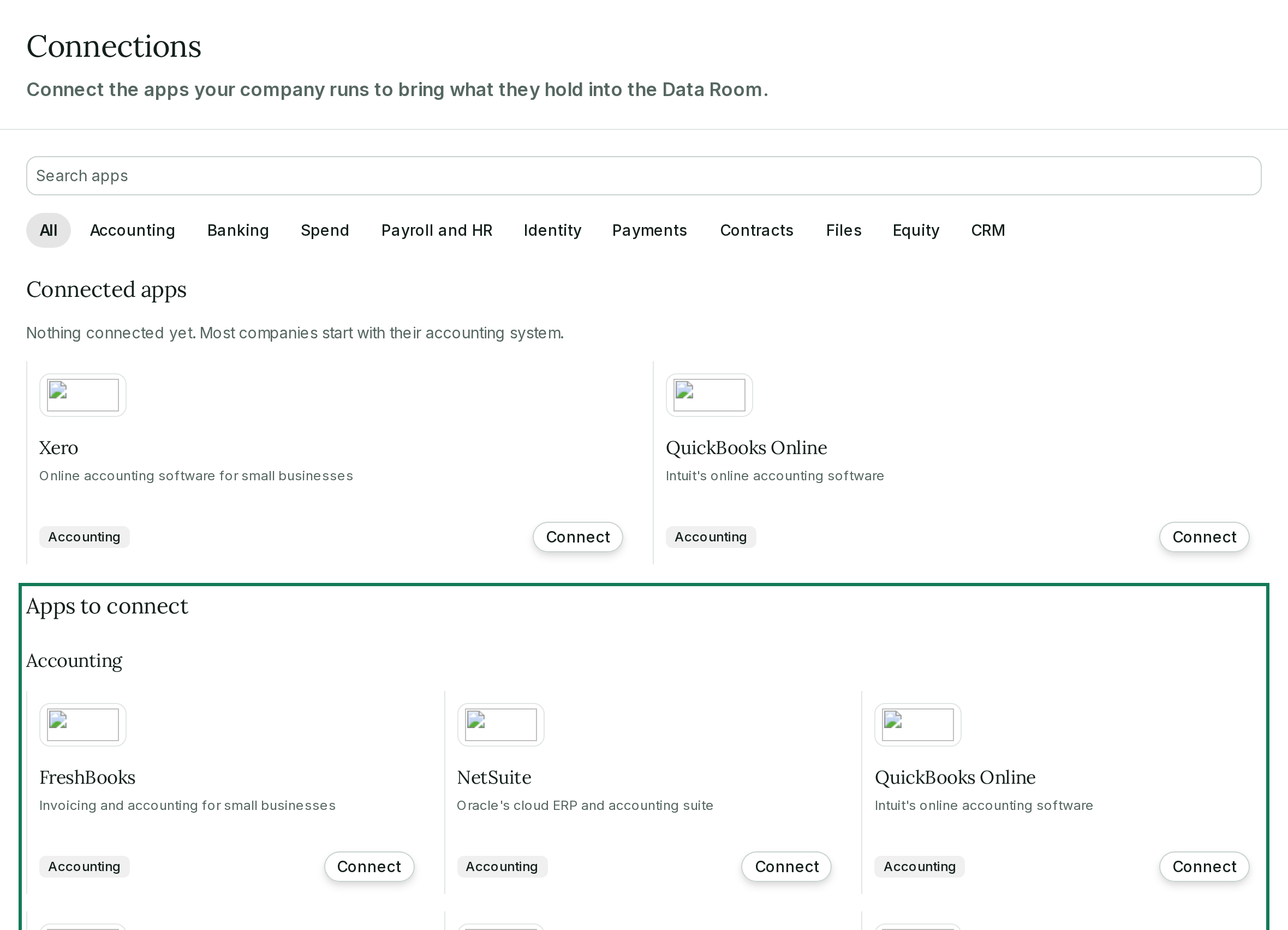
They include:
- Your ledger: QuickBooks Online or Xero, which bring in supplier and customer invoices, your suppliers and customers, and journal lines.
- Your bank: any bank Plaid reaches, such as Chase, Bank of America or SVB, which brings in your bank accounts, each with its current balance.
- DocuSign: your completed agreements, each one offered as a contract for you to add.
- Google Drive: a shared folder holding agreements, price lists and invoices as PDFs, Excel, CSV or Word files, or Google Sheets and Google Doc files.
Those five connect today, and the other apps on the page are planned. If you choose Connect on an app Ressura does not connect to yet, the page says so, and I need this tells us you need it.
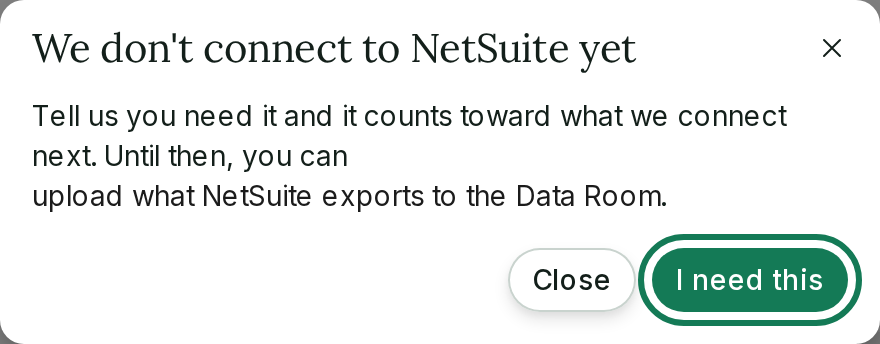
Connections lists every app.
If you came from Ressura’s page for accountants, your first session starts with a Connection: your company’s directory, Google Workspace or Microsoft Entra ID, before any document. Starting from your directory walks through it.
Every document and every row keeps its origin, so you can always distinguish what a Connection delivered from what a person added by hand.
What Free connects
On Free, your company connects one AP/ERP system, your ledger, such as QuickBooks Online or Xero, which Procure-to-Pay checks. It connects no AR/billing system, such as Stripe: that is Starter’s, for a Module such as Order-to-Cash. Your bank and cards, Google Drive, DocuSign and the other apps are not counted.
If your company has its AP/ERP system connected and an admin chooses Connect on another ledger, or chooses Connect on an AR/billing system, the page says what Free connects and that Starter connects one AP/ERP and one AR/billing system, and Professional as many as your team needs. Reconnecting the ledger you already have is never refused. An admin buys Starter or Professional under Billing in Account settings.
What Starter connects
On Starter, your company connects one AP/ERP system and one AR/billing system, for the two Modules you chose, such as Procure-to-Pay and Order-to-Cash. Your AP/ERP system is your ledger, such as QuickBooks Online or Xero; your AR/billing system is where you invoice customers, such as Stripe. Your bank and cards, Google Drive, DocuSign and the other apps are not counted.
If your company has its AP/ERP system connected and an admin chooses Connect on another ledger, the page says Starter connects one and that Professional connects as many systems as your team needs. Reconnecting the ledger you already have is never refused. Plans and fair use explains how to move up to Professional.
Connect Google Drive
Connect a folder and share it with the sharing address Ressura provides, then choose the files you want imported.
A file that is restricted, or of a type Ressura cannot read, cannot be selected.
When a file in Drive changes, choose the new version deliberately to import it; nothing is replaced behind your back. Removing a folder connection leaves the documents already in your Data Room exactly where they are.
What happens after you connect
The first sync looks back twelve months, newest first, and you can narrow that range before it runs. After that, new rows arrive as the connected system creates them, and each Module runs its checks on whatever is new.
Nothing a Connection brings in is charged: connected rows and the documents a Connection delivers cost nothing, and a sync never pauses. Connections has the detail of each Connection.
When a Connection needs attention
If a sync stops for a reason you can put right, the Connection shows Needs attention and explains what to do: sign in again, restore sharing on a folder, or grant a permission that was withdrawn. Put it right and sync again; nothing already in your Data Room is lost while a Connection is paused.
Disconnecting
Disconnect from the Connections page whenever you like. The documents and rows it delivered remain in your Data Room with their origin recorded, and the Findings that depend on them remain too.