On this page
Your first session is the Money Demo: a free, one-time check of one supplier invoice, without an account, a card or anything to connect. Ressura reads the invoice for real before you sign up, shows you what it read and checks it, and creating your free account is how you keep the check, which you can do at any step.
The steps
The free start is a short wizard of four steps, in a panel the width of the site, with the Ressura logo at its top to take you back to ressura.com, beside its name, Check a supplier invoice. Its steps are listed down the left of the panel: Supplier info, where you add one supplier invoice, and its agreement if you have it; Reading, where you watch Ressura read the invoice and check it; Result, every check on the invoice; and Save, where you create your free account to keep it. Each step is named and nothing more; a step Ressura has not reached yet is grayed out, and you can return to any step it has reached by pressing it. Save sits at the top of every step, so whatever has been completed is never lost. Each step’s buttons sit beneath it.
If you are already signed in when you begin, the free start has three steps, without Save: it records your check in your account continuously, from the moment you add your invoice, so there is nothing to keep at the end. Result offers Continue in place of Save and continue, and your company is on Free from your first step.
On a narrower screen the list moves to the top of the page and drops its labels, and a line above it says where you are, such as “Step 2 of 3 · Reading”. Moving to a step moves your screen reader’s focus to its heading, and nothing on the page animates if your device is set to reduce motion.
Getting started on a phone
On a phone, or any screen of similar width, the free start begins by asking for your email address. Its first step, Email, is headed See what Ressura finds, says you see any money billed over your supplier’s agreement, or that the invoice matches it, and that it is free, needs no card and is checked in under three minutes, then shows Continue with Google or a box headed Or confirm your email address, with Send code beneath it. A line beneath it says what your address is used for: “We’ll email you a link and, if you don’t finish, two reminders. We may also show you Ressura ads. Unsubscribe any time.” There is nothing to tick, and a last line names what to add next and the files the free start reads: one supplier invoice and, to check its prices, the contract or price list behind it, as PDF, Excel, CSV or Word. Nothing else is on the step.
Ressura emails you a six-digit code, and the step stays where it is: “We just sent a code to confirm your email. Paste it here.” opens beneath your address, with the code box. If you switch to your email app to find it and then return, the code box is still there for your address, even if the page has reloaded, and Send it again sends another with one tap once a minute has passed. Enter the code and press Continue: you are signed in, and the free start continues with three steps, Supplier info, Reading and Result, as if you had started signed in, with no Save at the end, since your check is saved to your account as you go.
While you go through the steps on a phone, a line at the top reads Better on a large screen. Press Send a link to my computer and Ressura emails you a link that signs you in on a computer, at your current step, and the line then confirms the address it was delivered to.
That link behaves exactly like the one in the sign-in email, described below, and another can be requested each minute. Dismissing the line, if you would rather continue on your phone, changes nothing else.
On a wider screen the sequence is unchanged: you add your invoice first, and create your account at Save.
Where would you like to start?
If you came to the free start from a page that is not about one role, such as ressura.com’s home page or its pricing, it first asks one question, Where would you like to start?, with nothing else on the screen. Pick the job closest to yours: Plug leaks in your cash cycle, Sign off every transaction as properly approved, Pay suppliers only what you agreed or Close every month with confidence, and press Start free, which waits until you have picked one. The free start then opens as it does from that role’s page, and signing in never loses your choice.
To reconcile a bank account, pick Reconcile your bank account: the free start opens at Your email, as under Starting from a bank reconciliation below.
You can change your choice until you sign in: open the free start again and the question shows with your choice marked. Pick another and press Start free.
If none of them fits, pick Something else and type a few words about what you would like Ressura to check. Ressura keeps your words, the free start asks you to Save your start with your free account, and you land on your dashboard with your words kept with your company. If you came from a page for one role, the free start skips the question.
Starting with your own question
When you started from Something else, your dashboard opens on one band, Where would you like to start?, which quotes your words and offers three ways in, quickest first: Add a supplier invoice, which opens your Data Room with Add to Data Room open; Connect your systems, which opens Connections; and Forward invoices by email, with your company’s address to forward them to and Copy address. On a computer, Ask Ressura opens beside it, greeting you with the words you typed and offering three questions to start from; close it and it stays closed. Nothing else shows on your dashboard until Ressura has a document or a connected system to read; from then on your dashboard shows your Modules as usual.
Starting from your directory
If you came from Ressura’s page for accountants, your first session starts from a system your company uses or a file from it, not an invoice, and asks no questions. It has three steps: Your email, Connect or add and First result.
- Your email: headed Who can approve and pay in your company?, with a line saying Ressura answers it from your company’s directory, who can sign in to what, then from where your supplier invoices are approved. Choose Continue with Google, or enter your email address and press Send code, then enter the six-digit code in the box that opens beneath it. You are signed in, with no card.
- Connect or add: headed Where Ressura reads from. Connect any system Ressura reads, or add any file. Under its heading the step says what Ressura reads from a directory, who sees it and how long it is kept: who is in your company, their admin roles and, where the directory records it, when each last signed in, changing nothing in your directory; only your company’s admins see their names, Ressura staff only when their work needs it, and they stay until you close the company. Type in Your system to find yours, or choose it from the logos beneath: your directory (Google Workspace, Microsoft Entra ID, Okta, JumpCloud), where supplier invoices are approved and paid (such as BILL, Ramp or Mercury) or your ledger. Ressura makes your company first, with you as its owner, and keeps what you chose as where your start reads from. Google Workspace and Microsoft Entra ID send you to Google or Microsoft to approve Ressura and bring you back to your first result; connecting takes an admin of the directory, so if that is not you, invite them to your company from Settings. Any other system opens its page under Connections. Google Workspace and Microsoft Entra ID say what each asks for.
- Add a file, under or, takes any export of users or approvals, from any system, or a picture of a user screen. It goes into your company’s Data Room and opens there, where you confirm what kind of file it is.
- First result: you come back to this step, and Ressura reads your directory and checks it. The result reads as Your result describes, titled with what it read, such as “148 people · Google Workspace”: who can still sign in without using it, whether every admin is one you approved, and whether anyone who left can still sign in. A directory cannot say who approves and pays your invoices, so those rows say Needs more to go on, with connect where invoices are approved. Started from an approvals export, such as BILL’s Bill Approval Audit report, the result is titled with the approvals and their months, such as “212 invoice approvals · September and October”: whether one person approves every invoice and whether an approver also paid, with your directory as what more would check. While Ressura is still checking, the step moves on by itself. Continue takes you into the App, where your first visit offers where your invoices are approved as your next step.
Your company is on Free from the moment it is made, and Access & Segregation of Duties is Free’s Module for it: its Checks run on what your directory brings in, on their schedule after that, and whenever you press Run Checks on its Overview. If you return to the free start later, it opens at your first result.
Starting from a bank reconciliation
If you came from Ressura’s page for bookkeepers, your first session is an Independent Bank Reconciliation of one bank or card account for any one month, read from two files, independent of your accounting system. It asks no questions and has three steps: Your email, Your files and Bank rec.
- Your email: headed Reconcile your bank account, as the button that brought you here. Choose Continue with Google, or enter your email address in the box headed Or confirm your email address and press Send code, then enter the six-digit code in the box that opens beneath it. You are signed in, with no card. On a phone the start is the same, with your email first.
- Your files: headed Reconcile your bank account. Add one month’s statement as your bank gives it, the PDF or a CSV or Excel sheet, and your books’ own record of the same account as a PDF, CSV or Excel file: any export or printout of the bank account from your books works, whatever its columns and however many months it covers. Either file can go in either field: files added in each other’s places are swapped, and the reconciliation says so; if both read as statements, or both as your books’ record, Ressura keeps one and asks for the other. If you have not exported one before, the line under that field links the steps for Xero and for QuickBooks Online, with a picture of each; either opens in a new tab, so the files you have chosen stay where they are. Press Reconcile. A PDF statement is read for its lines and its opening and closing balances, and its lines are added up from the one balance to the other: when they do not add up, the lines are kept all the same, and the month is not reconciled while that stands; a statement that shows neither balance is read all the same, with a note that Ressura could not check it read every line. A file is refused only when nothing in it reads as lines, in words about that file. Nothing else is asked: Ressura makes your company first, with you as its owner, and reads the account from the two files, its name as your books’ file names it (else as the statement names it) and its bank and last four digits from the statement, and adds it to your Bank Account Directory as To confirm. The first result names the account it read; a reconciliation of files that name no account shows as Bank account. Both files are read before anything is kept. Either file may hold several accounts, such as a statement of a checking, a savings and a card account together: Ressura takes the account that matches the other file, and asks you to pick from them only when it cannot tell. When the two files name different accounts, it shows what each says and asks whether to carry on, and keeps nothing until you answer. When the files cover more than one month, the latest month both cover in full is reconciled and named, and its reconciliation offers the others; a books’ file that covers more months gives up that month’s lines. Every reconciliation checks the statement’s opening balance first, against your books’ balance at the end of the month before: a difference is a Finding asking for the month before’s statement, and the month is still reconciled. When you carry on with a statement whose last four digits differ from those in your books’ name for the account, the reconciliation says so under its headline. Your books’ file is read for its lines, and where it states an opening and closing balance its lines are added up from the one to the other. Only when it has no lines for that month does Ressura say so, and both files are kept. Nothing is ever posted to your books. Adding your files agrees to Ressura’s Terms of Service and acknowledges its Privacy Policy, both linked under Reconcile. Beneath a dividing line you can instead connect your books or your bank from the logos, which opens their page under Connections.
- Bank rec: the reconciliation, as Your result describes, titled with the headline its own page in Cash & Bank gives it, such as “The bank and the books agree for October, except 6 lines.”, with the account and the month beneath: the opening balance’s difference first where there is one, how many lines are left over to decide, each classed with what it looks like, every other Finding of the month’s checks on its own row in its own words, such as a payment made twice, and how many lines match of the statement’s and your books’ together, each row in its whole words. Each row to decide has Resolve, which opens the reconciliation in Cash & Bank at that item with its decision showing; signed out, you sign in first and land on the same item. It never says the month is reconciled while the bank and the books do not meet. After Reconcile, two bars come first, as on the invoice start, each step under way with a spinner and each step done with a tick, and each bar moving on steadily between counts: Reading, saying Sending your files while they go up, then counting each file’s lines as they are read, every few lines, and growing with them, then each file’s count, your books’ as the whole file until the month is known and then with the month’s share, such as “671 lines read from your books, 69 of them in October”; and Checking, listing each step of Cash & Bank’s run in order: the opening balance, such as “The opening balance matches the books”, the matching, such as “138 of 138 lines matched”, each other Check with the lines it has looked at, such as “Payments made twice: 12 of 69 lines”, and the write-up, line by line, such as “Writing up line 48 of 138”. Checking is full only once the result can show, and then the result opens by itself; nothing is shown as settled before it is. Continue opens the reconciliation itself in Cash & Bank, where you decide each line left over (Cash & Bank), and your first visit offers your bank, through Plaid, as your next step, so next month needs no statement.
No statement to hand? Ressura’s page for bookkeepers carries Audit this month’s close instead, which opens Starting from your ledger.
Your company is on Free from the moment it is made, and Cash & Bank is Free’s Module for it, so the reconciliation keeps running every month for free. To pass the reconciliation on, use Share results on the reconciliation’s own page in Cash & Bank, at the end of its strip of figures, not on the result: enter anyone’s address, and the email carries the reconciliation’s headline, its account and month, what it found, and a link that opens it without signing in for 30 days. If you return to the free start later, it opens at your first result.
Starting from your ledger
If you chose Audit this month’s close instead on Ressura’s page for bookkeepers, your first session starts from your company’s books, not an invoice, and asks no questions. It has three steps: Your email, Your books and First result.
- Your email: headed Close every month with confidence. Choose Continue with Google, or enter your email address and press Send code, then enter the six-digit code in the box that opens beneath it. You are signed in, with no card.
- Your books: headed Connect your books, with a logo for every ledger Ressura reads: Xero, QuickBooks Online, NetSuite, Sage Intacct, FreshBooks, Zoho Books and Wave. Choose yours. Ressura makes your company first, with you as its owner, keeps the ledger you chose as where your start reads from, and only reads it: it changes nothing in it. A line on the step says no other customer sees your books, Ressura staff open them only when their work needs it, nothing goes to your suppliers or customers, and the raw rows Ressura reads are dropped after 90 days. QuickBooks Online sends you to Intuit to approve Ressura’s app and brings you back to your first result. Xero opens your company’s Xero Connection page, which asks for your own Xero app’s client ID and secret; once Xero is connected, open the free start again and it shows your first result. Any other ledger opens your company’s Connections. QuickBooks Online and Xero say what each asks for.
- First result: your month-end audit, from your ledger, for the month before the one you run it in. Ressura reads your books on their first sync and checks them, and the step moves on by itself while it does. The result reads as Your result describes, titled with the month, such as “October · your books”, with the ledger it read beneath: whether every line is categorized, whether a supplier invoice is entered twice, and whether a customer invoice is long overdue, each on its own row. It looks only at the month: supplier invoices dated in it, and customer invoices that fell due in it and are still owed. Your bank and cards are not connected yet, so whether every bank and card line is matched to the books says Needs more to go on, with connect the bank and cards. Continue takes you into the App, where your first visit offers your bank and cards as your next step.
No access to the books? Your books carries No access to the books? Add a supplier invoice instead., which opens the free start’s supplier invoice upload, Supplier info, as it works for everyone else, without Connect your systems, the start you came from. Ressura still knows you came from the page for bookkeepers.
Your company is on Free from the moment it is made, and General Ledger is Free’s Module for it. If you return to the free start later, it opens at your first result.
Share results
Once your first result has settled, with every check in order or with Findings, it carries Share results under its rows. The bank reconciliation start’s result does not: share the reconciliation from its own page in Cash & Bank, with the same Share results. Press Share results, enter anyone’s address under Email and press Share: Ressura emails them the result’s one line, the headline of each Finding with the Check that raised it, what Ressura checked with where each Check stands, and a link to your result. The email names you as the person who shared it, and a reply goes to you. The box then says Shared with and the address.
The link opens your month-end result without signing in, for 30 days, as it stands when it is opened. It shows each Finding’s headline and why it is flagged, but not See the evidence, since a Finding’s page is for the people in your company. It offers the person you shared it with Start free, their own free start.
An address that is not an email address is refused before anything is sent, and a send that fails says so; either way nothing else changes, so you can try again. You can share your result up to ten times an hour.
When a first read takes a while
Reading a whole system, your directory or your books, can take a while: usually within the hour, sometimes overnight. When you start from a connected system, the First result step says so after a few seconds: “Reading all of” the system “takes a while”, with Go to your Dashboard and Keep watching. You do not need to wait. Go to your Dashboard takes you into the App while Ressura keeps reading, and Ressura emails you once, the moment your first result is ready, with a link to your Dashboard. Keep watching hides the line and stays on the step, which moves on by itself as Ressura checks. A file, an export or a supplier invoice is read in about a minute, so its start never offers this.
Supplier info
The first step is headed by the job your page on ressura.com named, such as Plug leaks in your cash cycle if you came from the page for owners, or Pay suppliers only what you agreed from the page for procurement leads. One line beneath it says the quickest way in is one supplier invoice, and it offers three ways in:
- Add a supplier invoice: choose or drop one invoice, preferably a recent one you would normally check by hand. It takes a PDF, an Excel or CSV file, or a Word document, up to 50 MB, as described under What to have ready, and Ressura starts reading it as soon as it is added. One line under it says that by adding an invoice you agree to Ressura’s Terms of Service and acknowledge its Privacy Policy, and that is all: how your files are handled is in the Security Statement, the Privacy Policy and Retention and deletion. No other customer sees them, Ressura staff open them only when their work needs it, nothing goes to your supplier, and unless you save them to an account they are deleted after 7 days.
- Forward invoices by email: send some or all of your supplier invoices to an address Ressura gives you. The address belongs to your company, so this takes you to Save first.
- Connect your systems: your accounting system, your bank and where invoices are approved. Connecting needs your free account, so this takes you to Save first, and then to your company’s Connections. It is not offered if you came from the page for bookkeepers and chose to drop in supplier invoices instead.
Nothing sits beside the ways in: the step is the heading, its one line, the three ways in and the Terms line.
The free start checks one invoice at a time. Dropping two together is refused, with the words “One invoice at a time. Check this one first; the next can follow.”, and neither is added; once one is in, there is no way to add a second, and your account checks as many as you like. Nothing on the Money Demo is charged or needs a card.
Once your invoice is in, the other ways in go. The step shows the invoice and asks for the supplier’s agreement: Got their quote or price list? if you came from the page for owners, Have the supplier’s agreement? otherwise, with a line saying every price is checked against it. Add it opens a second box for the price list, quote or contract, in the same formats, which Ressura reads straight away, before you have an account; Not now leaves it, and your result then says what the agreement would have checked. If Ressura could not read the agreement, the step says why and you can add it again. Check this invoice goes on to Reading.
If Ressura is already reading as many free starts as it can for the day, it says so, and asks you to create your free account first: your invoice is checked as soon as you have.
Reading
Reading is headed Reading your invoice and lists what Ressura has really done, each line as it happens: Supplier identified, with the supplier’s name, Invoice details read, with the invoice number and total, lines extracted, with how many billed lines it read, and Arithmetic checked. Beneath them it says what it is doing now, such as “Checking the arithmetic…”. Nothing is timed, counted up or invented, and a screen reader announces each new line once; when Ressura reads something it is uncertain of, such as a total it could not read reliably, the line says so rather than guessing, and a file Ressura could not read is named, with an explanation of what happened. See the result opens the next step once Ressura has read the invoice. With the agreement added, Ressura compares it with the invoice too, and Price against the agreement runs until it has.
Your result
Result opens by itself once Ressura has finished reading and checking. It starts with a small title saying what was checked, such as “Invoice INV-48812 · Cascade Pipe & Supply”, and beneath it the amount and the date, such as “$2,340.00, dated 3 October 2026.”, with “checked against the price list you added” when you added one. Copy a summary beside it copies the result in one sentence to pass on, such as “Ressura checked Invoice INV-48812 · Cascade Pipe & Supply, $2,340.00: 1 item needs your review.” The bank reconciliation start’s result has no Copy a summary: pass the reconciliation on with Share results on its own page in Cash & Bank.
Beneath it is one list. Each row is a sentence in plain words, with a status before it:
- Your answer needed: something Ressura found that needs you, such as “Total is $20.00 more than its lines add up to ($2,320.00 vs $2,340.00).” Its question sits beneath it in a shaded box, such as Is there a charge that isn’t listed?, with two answers to choose from. Choosing one marks the row Answered, with what you said, and Ressura checks it again on your answer. Before you have an account, your answer is kept with your check and applied as soon as you save it.
- Fine: something Ressura checked that holds, such as “The total adds up to its lines.”
- Needs more to go on: something Ressura could check with more to go on, and what would give it that, such as “Whether this supplier has sent you the same invoice twice · add their next invoice”. Without the supplier’s agreement, the prices are one of these, with add the agreement, or add their quote or price list if you came from the page for owners. The last row is the next system your job reads: your bank, your purchasing system or your books.
- Checking: something Ressura is still checking, which says nothing yet and fills in without a refresh.
The result names no Check and counts none: each row says what it looked at in your words. Beside the one button, Save and continue, a line counts the answers still waiting above, such as “1 answer still waiting above”, or says All answered. Thank you. once you have answered them. Save and continue goes on to Save; you never need to wait for what Ressura is still checking, which finishes in your account.
Create your account
Save, available at the top of every step, preserves your audit: it is headed Save this result (or Connect your systems when that was your way in), with the line Free keeps this running., and summarizes what is retained, including the supplier, the invoice number, everything Ressura interpreted and the verifications it has completed. Creating your free account is signing in. You land in your first visit, on your company’s Dashboard, and from then on your company is on Free, as What your company can do on Free, under Your first visit, explains.
Choose Continue with Google, or confirm your email address with a code: enter your address in the box headed Or confirm your email address and press Send code. The step stays where it is, and the box for the six-digit code opens beneath your address. Type the code in and press Continue. While Ressura saves your check the step says “Setting up your account...”; if that fails, Try again has it try once more. The code works for ten minutes, and you can ask for a new one after a minute.
Every sign-in in the free start takes any email address, on every screen that asks for one: your work address, or a personal one, such as one at gmail.com, outlook.com, yahoo.com or icloud.com, and any Google account. A personal address names no company, so your first visit asks what your company is called, unless what you added names it, as a bank statement’s account holder does. One line under every sign-in says that by signing in you agree to Ressura’s Terms of Service and acknowledge its Privacy Policy.
The same email also carries a Continue on your computer link. Open the email on a computer and follow the link to sign in there without a code, continuing your free start at the step you left, even if you requested the email on your phone.
The link works once, within 7 days; if it has expired or was already used, the sign-in page says so and you can request a new code.
Inside an application’s built-in browser, such as Facebook’s or Instagram’s, every start shows only the email box, because Google refuses its sign-in there, so Continue with Google is not shown. To use Google, open the page in your phone’s browser from the application’s menu.
If five wrong codes are entered for the same address within 15 minutes, that address cannot sign in with a code for the next 15 minutes. This stops anyone guessing their way into your account. Wait 15 minutes and ask for a new code, or continue with Google if your address is a Google account.
Cloudflare checks the browser asking for or entering a code, out of sight. Once in a while it is unsure and shows a checkbox under the form instead: tick it and the request goes on. If it still cannot confirm your browser, you see “We could not confirm this browser”. Try again, or continue with Google.
Your invoice is kept privately until you save it. If you do not create your account, it is deleted 7 days after you start.
What to have ready
One supplier invoice from your own records is enough to begin: an invoice from a supplier that felt high, or one you never checked against what you agreed, as the PDF, spreadsheet or Word document the supplier sent. Ressura does not read photographs.
To check its prices, Ressura needs what you agreed with that supplier: an order form, a statement of work, a price list, a lease or an engagement letter. Any document that records what you agreed to pay qualifies, whatever it is called, and a supplier’s price list can be the spreadsheet they sent.
Your first visit
Saving takes you into the App, to your company’s Dashboard, where your first visit waits: one guide under your audit’s name, such as Your supplier audit, with one step open at a time. A step you have done folds to one line with a tick, and nothing else shows beneath the guide but Cover more of your business with Ressura. A start from your directory or your books opens the same guide, from Continue on your first result or from Go to your Dashboard while a long read goes on, and so does a supplier invoice added signed in, on a phone among them, from Continue on its result. Its four steps:
- Your company: the name Ressura read from your invoice, or from your email address, which you can change. That’s right keeps it, and nothing else opens until you have. A personal address names no company, so the step asks What is your company called? and Continue keeps your answer.
- The question your check left: each row of your first result that still needs your answer, with its answers, answered in place. When there is nothing to answer, the step folds to one line, such as “Invoice INV-48812 · Cascade Pipe & Supply checked”. If your first result has not landed yet, the step says Your first result is on its way, by tomorrow morning, and that Ressura emails you; it never holds up the next step. If you chose to forward invoices, the step is Send your first invoice, with your company’s address and Copy address.
- The next step, in your start’s words: Connect your systems, Connect your books, Connect your directory, Connect where invoices are approved or Connect the bank and cards, with the systems that step reads, each with its logo. Pressing one opens that Connection on Connections, and Connect a system opens the list. When you started with a supplier invoice, your company’s address to forward invoices to is there too. Once one of those systems is connected the step folds to “connected”; Not now moves on without connecting.
- Ressura takes it from here: what Ressura watches from now on, and that your Module is on, free, for as long as you like. Open your Dashboard finishes the guide, and your Dashboard takes its place from then on, for everyone in your company.
While the guide shows, the items in the navigation with nothing behind them yet (Insights, Directory, Context, and Actions while nothing waits there) are dimmed.
Forward supplier invoices
Your company has its own Ressura address for supplier invoices, which the Data Room shows, with Copy address. Forward a supplier’s email to it, from your own email or your bookkeeper’s, and each PDF, Excel or Word file attached arrives in your Data Room as a document Ressura reads and checks, as the invoice you added was. Ressura keeps who forwarded it and when. An email from someone in your company arrives at once; an email from anyone else waits on the Data Room until you read it, so nobody outside can put an invoice in front of your checks.
Connect your systems
The Money Demo is a one-time check of the invoice you added, and your company is now on Free, at no cost, for as long as you like, with no card. To have Ressura check what you pay from then on, at least every week on Free or every day on Starter, connect a system from your first visit’s next step: it opens Connections, where your company connects its accounting system, such as QuickBooks Online or Xero. Plans and fair use explains what Free includes.
What your company can do on Free
Free includes one Module, the one your free start checked: Procure-to-Pay, which checks what your company pays, when you started with a supplier invoice or told Ressura you had something else in mind. On Free your company:
- Keeps your first result, the Module’s pages, each Finding with the invoice lines and agreement clause it was drawn from, your Actions, and the documents in your Data Room. You accept or reject each Finding, and ask Ask Ressura about what was found.
- Adds documents, to the Data Room, by dropping a file on Ask Ressura or in answer to a document request; connects one AP/ERP system on Connections; and runs its Module’s checks at least every week and whenever you press Run Checks.
Connecting a second AP/ERP system or an AR/billing system, and more than 500 documents a month read straight away, are Starter’s, and each says so where you reach it. An admin buys Starter or Professional under Billing in Account settings, and everything your company holds stays.
When the check could not run
If Ressura could not read your invoice, the file waits on Actions as a question, where Read again has Ressura try once more. If the check itself stopped before it finished, your invoice remains in your Data Room and you can run the check again from its Module.
Your dashboard
Until you finish your first visit, your Dashboard is its guide. After it, your Dashboard shows your Module’s card, a Watching tile with what Ressura reads, and Getting started, the firsts still to do, as the Dashboard explains.
When you started from Something else, your Dashboard opens on your words instead, as Starting with your own question explains.
Coming back to the wizard
Once you have saved, the wizard is over: signing in again or reopening the free start takes you to your Dashboard, where your first visit waits until you finish it. If you started signed in, reopening the free start, on this device or any other you are signed in on, returns you to the step you left, until you save or press Go to your dashboard. Once the wizard has concluded it never restarts: reopening the free start takes you directly to your dashboard instead.
After the first check
Checks run when a document arrives, when your accounting system sends new invoices, once a day, and whenever you press Run Checks on the Module’s Overview. On Free, Run Checks works on Free’s Module like any other. Each invoice is checked once, when it arrives, and again only when something it was checked against changes, such as an amendment arriving, so Run Checks checks what is new or affected. Anything that arrives while checks are running is checked by a run of its own once that run ends.
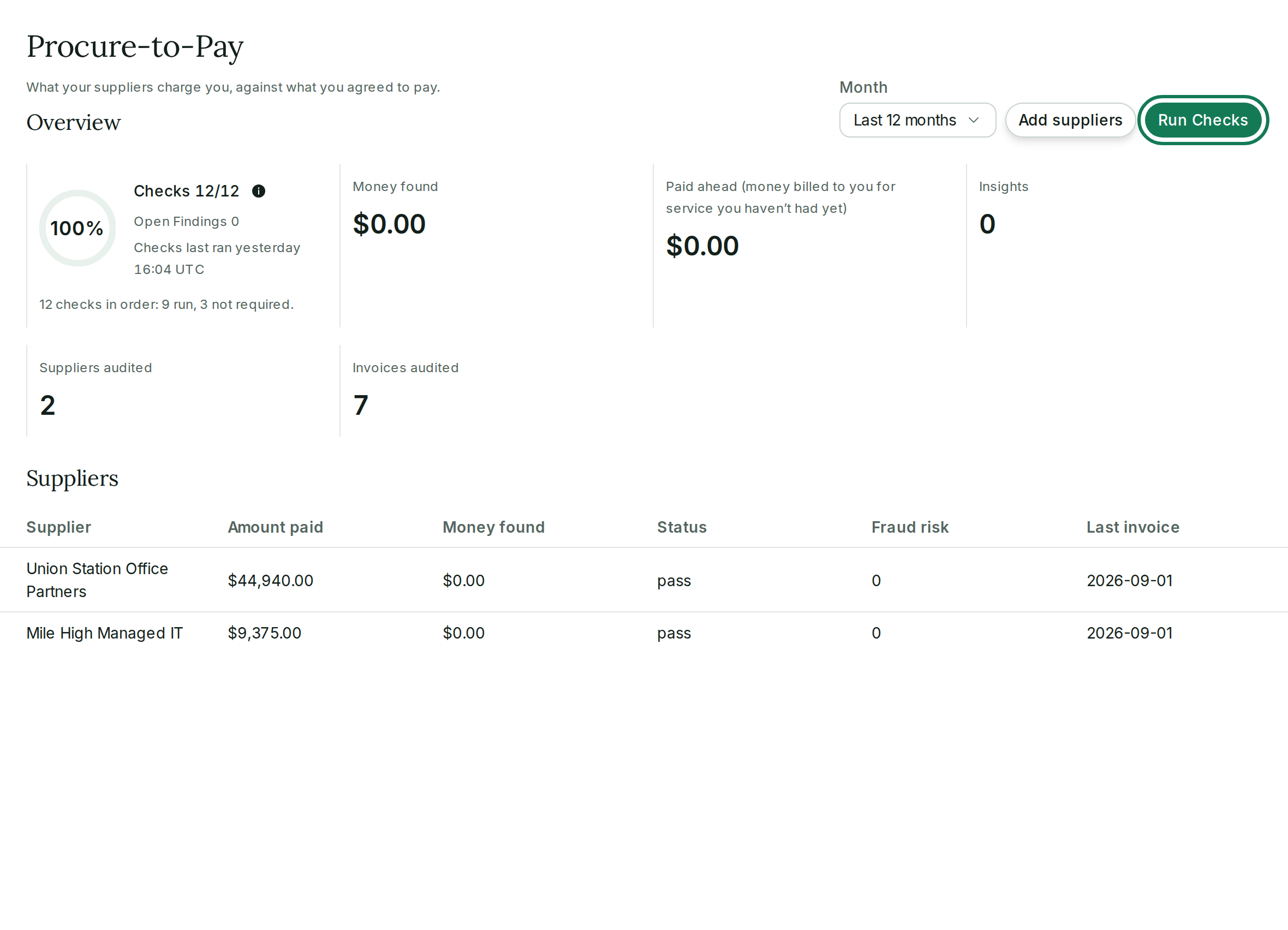
While they run, the button reads Checks running, and under the Assurance dial a line says how far the run has got, such as Checks running, 4 of 11 done. When the run ends, the page refreshes once and shows what it found.
A Finding is one of four kinds:
- Pass: the invoice agrees with the agreement.
- Exception: something does not agree, shown as a dollar amount with its provenance.
- Needs information: a document or an answer from you is required before the check can finish.
- Fraud risk: a pattern worth a second look, with the Findings it links together, never an accusation.
You decide what happens to each Finding: accept it, reject it with a reason, or answer the question it raises. Whatever you say becomes organizational context, so the same question is never asked twice.
Keep checking
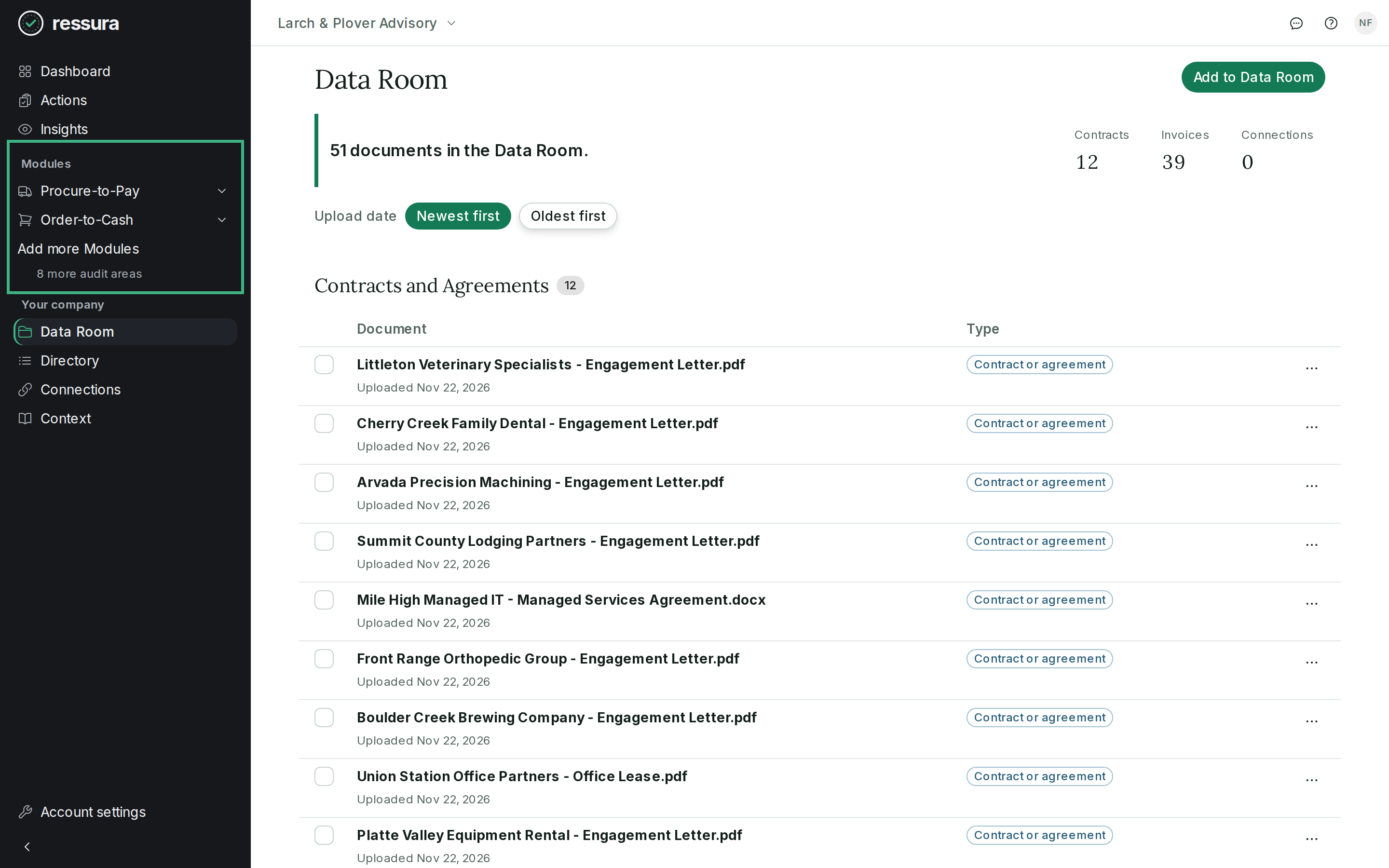
Procure-to-Pay is Free’s Module when you started with a supplier invoice: add more supplier invoices and agreements, and it checks them as they arrive. Every other Module, such as Order-to-Cash, which compares what you billed with what you agreed to charge, is part of Starter, added from Add more Modules as Starter’s second Module. The navigation on the left is in three groups: Dashboard at the top; under Modules, the Modules you have, each with its own icon, with Add more Modules beneath them opening the rest; and under Your company, your Data Room, Directory, Connections and Context. Account settings sits at the bottom. The arrow button at the very bottom hides the navigation to a strip of icons, giving the page more room; there, a Module’s icon lists its pages beside it, and the same button brings the whole navigation back. Ressura remembers which you chose on any computer you sign in on.
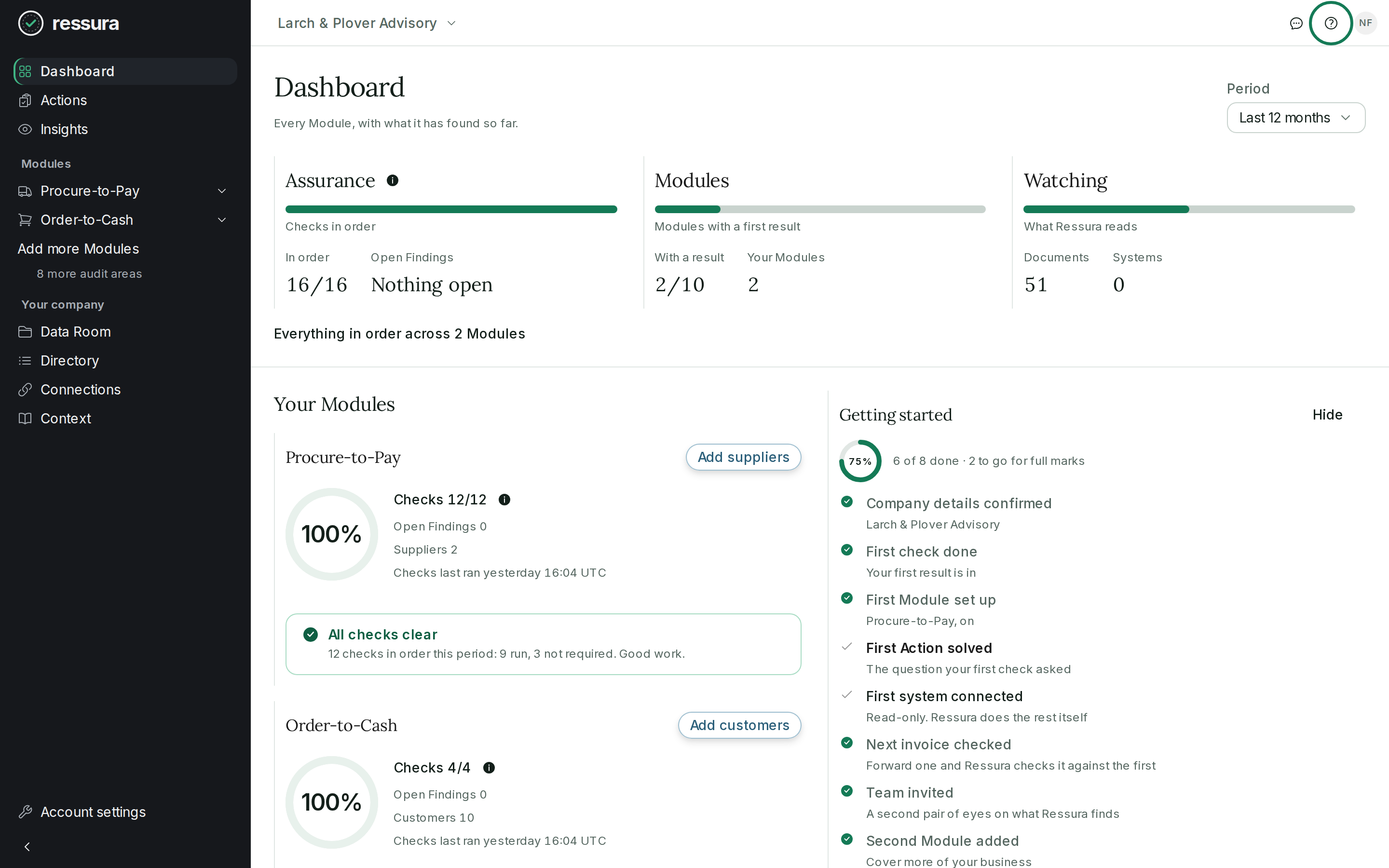
Help is the question-mark icon at the top right, next to the Ask Ressura icon; on a phone, Help and Ask Ressura are in the menu.
A question to Ask Ressura, opening a Finding, confirming an action and moving around the application cost nothing on Free, and nothing on any plan is charged by use.
When you are ready for more
Once the first Finding has earned it, connect your ledger or your bank, and Ressura checks every invoice, at least every week on Free and every day on Starter, without anyone uploading a file. On Free your company connects one AP/ERP system: your first visit’s next step opens Connections. Connect your systems explains what each Connection brings in.