On this page
To reconcile a bank account from a statement, Ressura asks for two files: the bank’s statement, and your books’ own record of the same account for the same month. In QuickBooks Online, that record is the account’s Bank Register, exported from the register itself. This page shows where to find it and how to export it. The pictures are QuickBooks Online’s own sample company, on its screens as of November 2026.
1. Open the Chart of accounts
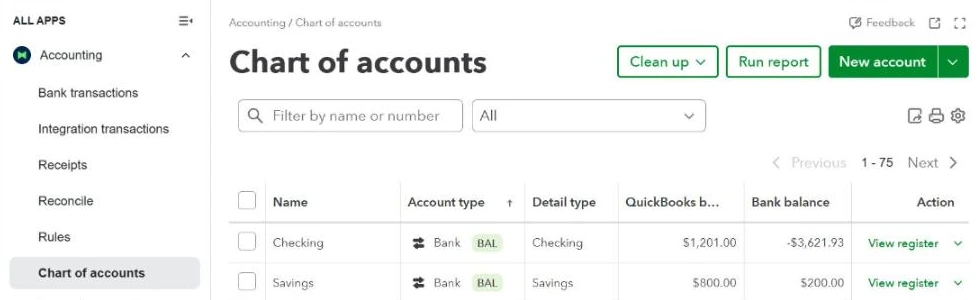
Sign in to QuickBooks Online and choose Accounting in the menu on the left, then Chart of accounts.
2. Open the bank account’s register
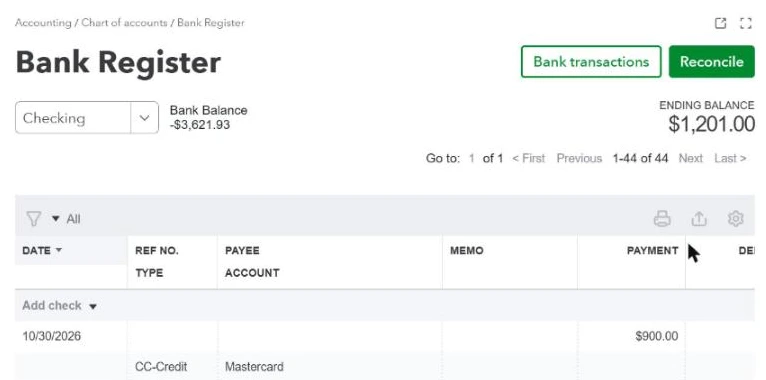
Find the bank account the statement is for and choose View register at the end of its row. The Bank Register opens with the account’s name at the top left.
3. Filter it to the month
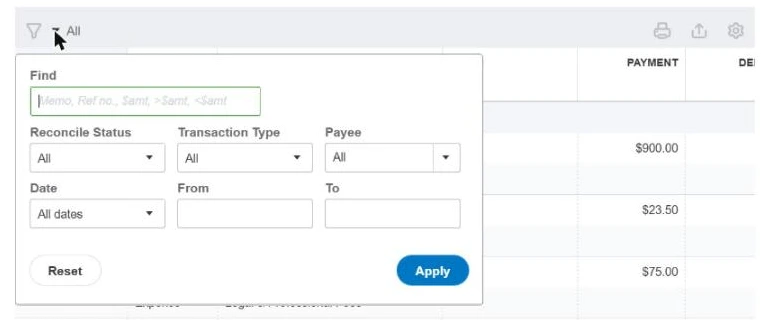
Choose the filter, the funnel icon at the top left of the list. Under Date, enter the statement month’s first day in From and its last day in To, then choose Apply.
4. Export the register
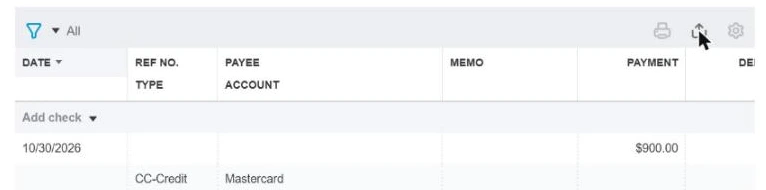
Choose the export icon at the top right of the list: an arrow pointing up out of a tray, between the printer and the gear. QuickBooks downloads the register to your computer as a spreadsheet.
Add it in Ressura
Add the file as it is, without opening or changing it, where Ressura asks for Your books’ record of the account: on the Your files step when you start from a bank reconciliation, or in Reconcile from a statement on Cash & Bank’s Bank Reconciliations. Add the bank’s statement for the same month beside it and choose Reconcile. Ressura reads both files and never posts anything to your books.
Read next
Working with Cash & Bank explains what a reconciliation shows and how to decide each line left over. If your books are in Xero, see Export Xero’s Account Transactions report. With QuickBooks Online connected, Ressura reads the account’s lines from QuickBooks itself. The Cash & Bank page says what the Module checks.